Schritt 1: Herunterladen und installieren
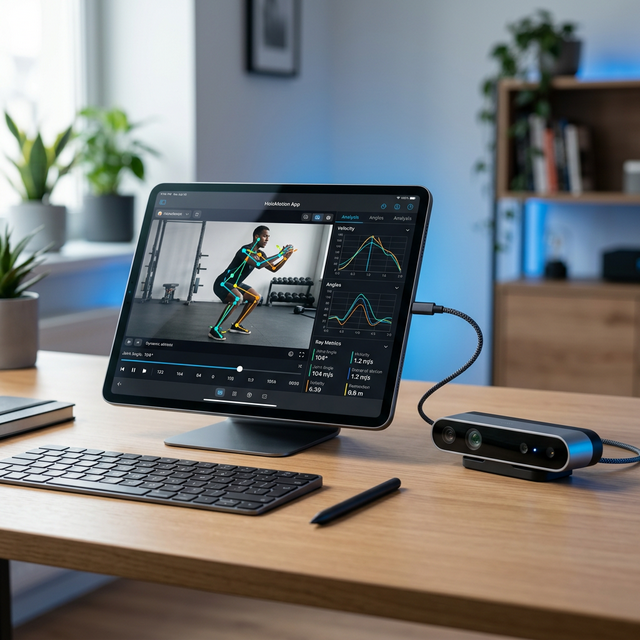
Laden Sie die HoloMotion-App aus dem Apple App Store herunter (iOS 15.0+). Suchen Sie nach „HoloMotion“ oder „HoloMotion Run“ und tippen Sie auf „Installieren“. Die App benötigt ca. 200 MB Speicherplatz. Öffnen Sie nach der Installation die App und erteilen Sie die erforderlichen Berechtigungen: Kamerazugriff und Bluetooth (für die Verbindung mit dem HoloMotion Edge-Gerät).
Schritt 2: Kontoregistrierung
Erstellen Sie Ihr HoloMotion-Konto mit Ihrer E-Mail-Adresse. Für klinische Benutzer wählen Sie bei der Registrierung „Gesundheitsfachkraft“ aus, um erweiterte Berichtsfunktionen freizuschalten. Geben Sie den Namen Ihrer Klinik/Organisation und Ihre beruflichen Qualifikationen ein. Bestätigen Sie Ihre E-Mail-Adresse, um Ihr Konto zu aktivieren.
Schritt 3: Geräteverbindung
Bei Verwendung des HoloMotion Edge-Geräts:
1. Schalten Sie das Edge-Gerät ein und warten Sie, bis die LED-Anzeige durchgehend blau leuchtet (Bereitschaftszustand).
2. Tippen Sie in der App auf „Gerät verbinden“ und wählen Sie Ihr Edge-Gerät aus der Bluetooth-Liste aus.
3. Die App kalibriert die Kamera automatisch, sobald die Verbindung hergestellt ist.
Wenn Sie nur die iPhone-Kamera verwenden (HoloMotion Run-Modus):
1. Platzieren Sie Ihr iPhone auf einer stabilen Oberfläche (Stativ empfohlen) in Hüfthöhe.
2. Stellen Sie sicher, dass der gesamte Körper im Kamerabild sichtbar ist.
3. Positionieren Sie sich 2-3 Meter von der Kamera entfernt.
Schritt 4: Durchführung Ihrer ersten Bewertung
Wählen Sie den Bewertungstyp auf dem Startbildschirm aus:
• Ganganalyse: Gehen Sie 60 Sekunden lang auf natürliche Weise
• Haltungsprüfung: Stehen Sie 10 Sekunden lang in 4 Positionen still
• Funktionelle Bewegung: Befolgen Sie die Bewegungsanweisungen auf dem Bildschirm
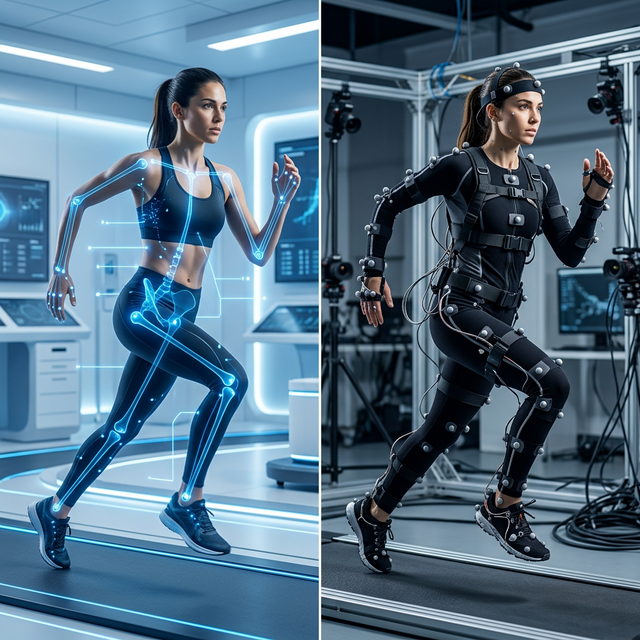
• Laufanalyse: Laufen Sie 60 Sekunden lang in Ihrem normalen Tempo.
Tippen Sie auf „Start“, wenn Sie fertig sind. Die KI erkennt Ihren Körper automatisch und beginnt mit der Verfolgung. Eine Fortschrittsanzeige zeigt den Abschluss der Aufnahme an. Sorgen Sie für eine gleichmäßige Beleuchtung und vermeiden Sie lockere/reflektierende Kleidung, um optimale Ergebnisse zu erzielen.
Schritt 5: Anzeigen Ihres Berichts
Nach Abschluss der Erfassung verarbeitet die KI die Daten in etwa 30 Sekunden. Ihr Bericht enthält:
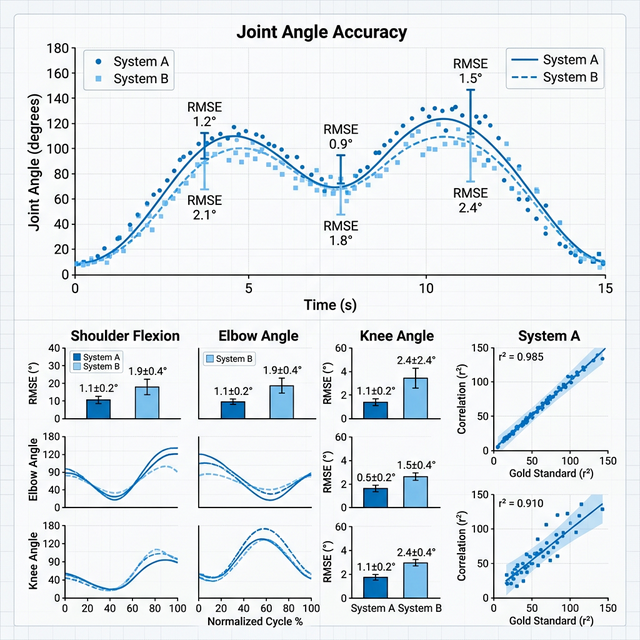
• Gelenkwinkelmessungen und Symmetrieanalyse
• Bewegungsqualitätswerte (farbcodiert: grün/gelb/rot)
• Vergleich mit normativen Daten (alters- und geschlechtsangepasst)
• Trendanalyse (falls vorherige Einschätzungen vorliegen)
• Druckbarer PDF-Bericht für die klinische Dokumentation
Berichte können als PDF exportiert, per E-Mail geteilt oder für den geräteübergreifenden Zugriff mit der Cloud synchronisiert werden.
Tipps für beste Ergebnisse
• Tragen Sie eng anliegende, dunkle Kleidung (vermeiden Sie Streifen und Logos)
• Sorgen Sie für eine gleichmäßige Beleuchtung ohne starke Schatten
• Schuhe zur Haltungsbeurteilung ausziehen; Verwenden Sie zur Gang-/Laufanalyse normales Schuhwerk
• Führen Sie eine kurze Aufwärmphase durch, bevor Sie die Analyse durchführen
• Behalten Sie für den klinischen Einsatz sitzungsübergreifend die gleichen Einrichtungsbedingungen bei, um zuverlässige Vergleiche zu ermöglichen.